The icons at the top of a chat
Picture, name and last seen: tap to open the contact’s info, with Lock chat, Block and Report.
The store icon shows only when the person sells on the Marketplace. Tap it to see everything they list.
The phone icon: tap it and choose Voice call or Video call.
The bar at the top of a chat
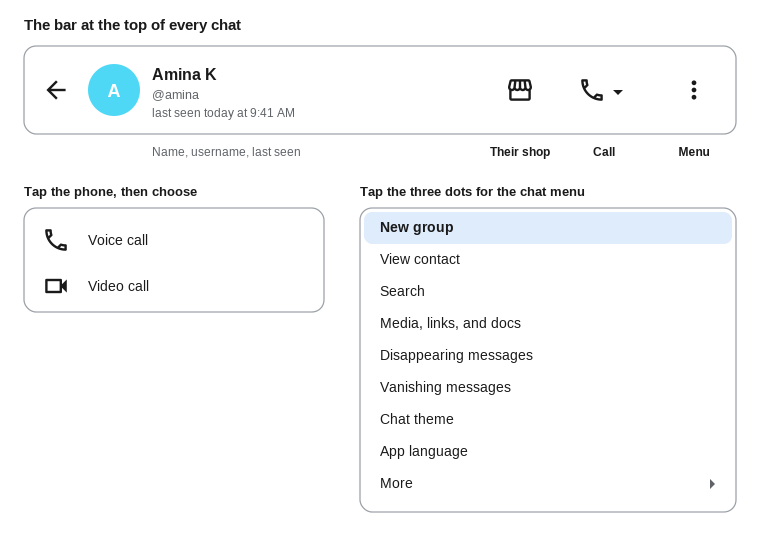
Back arrow returns to your chats.
Picture, name, username and last seen. Tap here to open the contact's info. You see "online" or their last seen only if their privacy settings allow it (Choose who sees your last seen, photo and status).
Their shop (the store icon). It shows only when this person sells on the Youflip Marketplace: products, services, or property such as rentals, houses and land. Tap it to see everything they have listed. If they list nothing, the icon does not appear. Their listings are their own; How to sell an item on the Marketplace applies to anything you buy.
Call (the phone with an arrow). Tap it and choose Voice call or Video call (How to make a voice or video call).
-
Menu (the three dots):
New group: start a group (see above).
View contact: their profile, shared media, and options such as Lock chat, Block and Report.
Search: find words in this chat.
Media, links, and docs: every photo, video, link and document shared in this chat, in one place.
Disappearing messages and Vanishing messages: turn them on or off for this chat (below).
Chat theme: give this chat its own colours and wallpaper (Light, dark and chat themes).
App language: change the language Youflip is shown in (How to change the app language).
More: further options for this chat, such as clearing it.