Finding things in your Vault
At the top, the Vault shows how much of your 500 MB you have used.
The tabs: All, Phonebook, Photos, Videos, Docs, Audio and Links, each with its number of items. The All tab lists every category with its size; tap a row to open it.
The icons at the top: New group, Refresh, and Clear cache. Clearing the cache only removes pictures saved for a while on this phone; nothing is removed from your Vault.
How your Vault is labelled
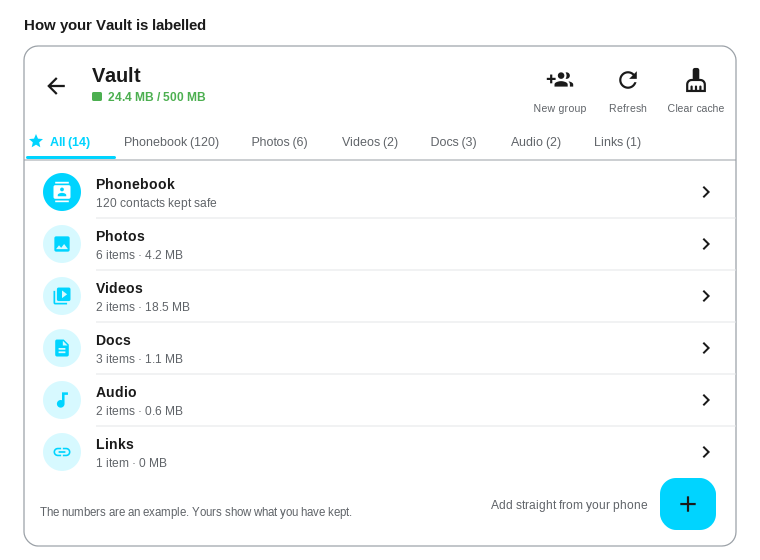
At the top: the word Vault and, under it, how much of your 500 MB you have used.
The three icons: New group starts a new group chat; Refresh reloads the Vault; Clear cache clears pictures saved for a while on this phone to load faster. Clearing the cache does not remove anything from your Vault.
The tabs: All, Phonebook, Photos, Videos, Docs, Audio and Links, each with the number of items in it.
The All tab lists every category with its number of items and the space it uses. Tap a row to open that tab.
The + button adds files straight from your phone.
The picture uses example numbers and no real photos.