Press and hold a message: reply, copy, forward and more
Press and hold any message to select it. You then see a bar across the top, a row of reactions and a short menu.
The top bar: Done (back arrow), Reply, then Vault for a photo, video, voice note, audio file, document or link, or Copy for a text message, then Delete, Forward and the three dots for more options.
Pressing and holding a message
Press and hold any message in a chat to select it. Youflip then shows three things at once: a selection bar across the top of the screen, a row of reactions, and a short menu beside the message. What you see depends on the type of message. The pictures here use placeholders, not real photos of people.
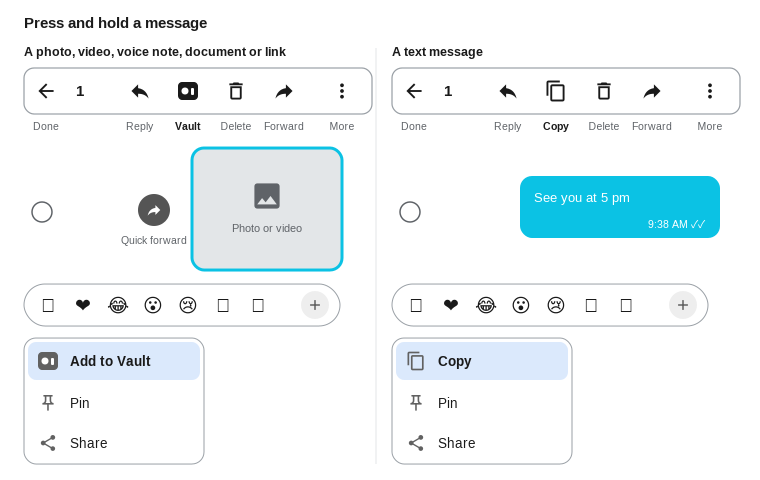
The selection bar. The number shows how many messages you have selected. Tap other messages to add them, and act on them all together. From left to right: the back arrow (Done) ends the selection; Reply answers the message; the second icon is Vault for a photo, video, voice note, audio file, document or link, and Copy for a text message; Delete removes it; Forward sends it to another chat; and the three dots open more options for the selected message, such as message info, and Edit for a message you can still edit.
The reactions row. React with 👍 ❤️ 😂 😮 😢 🙏 or 🤔. The + at the end opens every emoji.
The short menu. For a photo, video, voice note, audio file, document or link: Add to Vault, Pin and Share. For a text message: Copy, Pin and Share. Pin is not available yet; tapping it shows "coming soon".
Quick forward. Beside a photo or video, a round arrow sends it on without opening any menu.
The selection circle. An empty circle at the left marks a message you can select; it fills in once the message is selected.
What goes to the Vault from a chat. Photos, videos, voice notes, audio files, documents (including scanned documents) and links can be added to your Vault. Text messages cannot. To keep the words of a text message, copy them. Section 12 explains the Vault in full.