Keep chatting during a call
Tap the minimise button at the top left of the call screen. The call keeps running in a bar at the top of the screen, with the person’s name and the timer.
Use the microphone in the bar to mute or unmute, and the red button to end the call. Tap the bar, or the live call bubble in the chat (“Tap to return”), to go back to the full call screen.
Minimising a call
Tap the minimise button at the top left of the call screen to keep the call going while you use the rest of Youflip, for example to read or reply in the chat.
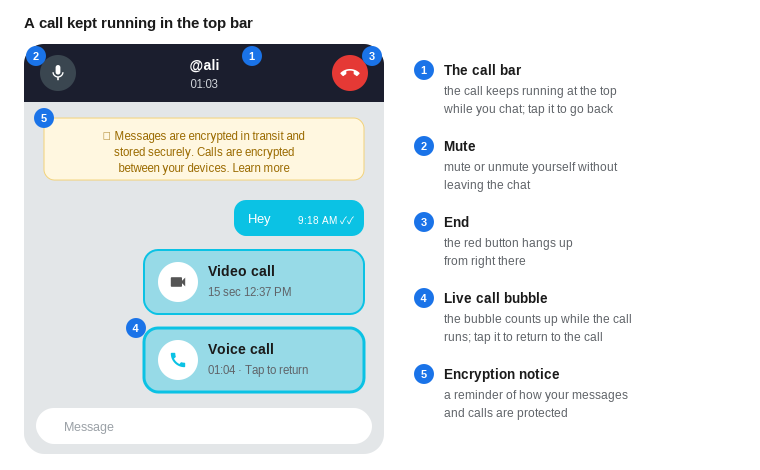
The call bar stays at the top of the screen with the person's name and the call timer. Tap it to go back to the full call screen.
Mute and end are in the bar itself: the microphone on the left mutes or unmutes you, and the red button on the right ends the call.
The live call bubble in the chat counts up while the call runs (for example "Voice call, 01:04 · Tap to return"). Tap it to return to the call.
The notice at the top of the chat reminds you that messages are encrypted in transit and stored securely, and calls are encrypted between your devices.
Whichever way you start it, the call is connected and protected in exactly the same way, as explained below.